Follow the instructions below to submit a formal request for Wharton Classroom Technology Support services (class recordings, classroom technology management, technology set up support, etc).
Use the Production Request Form to request Wharton Production services (studio and on-location shoots, webinars, podcasts).
Step-by-Step Guide
Before You Start
You will need the following:
- PennKey Username and Password
- Budget Code from your Business Administrator (Department or Project)
- An existing room reservation code from Wharton Operations (obtained by completing the Room Reservation Form)
There are two ways to populate your event to submit a tech request form. The first is through the “My Reservations” tab in the Spaces app. The second is by searching for your event title within the Tech Request form itself.
Only the main contact for the room reservation with Wharton Operations can submit the Tech Request Form. Confirm the main contact with Wharton Operations before submitting.
If you have any issues locating your event, please contact Wharton Operations (scheduling@wharton.upenn.edu) or Classroom Tech Support
(mailto:class-tech@wharton.upenn.edu) for further guidance.
Option 1: Most Direct, Pre-Populated Form
If you have a room assigned via the Spaces app, you can access your “My Reservations” page and submit a request for tech support by doing the following:
Open the Spaces App, which defaults to your “My Reservations” page.
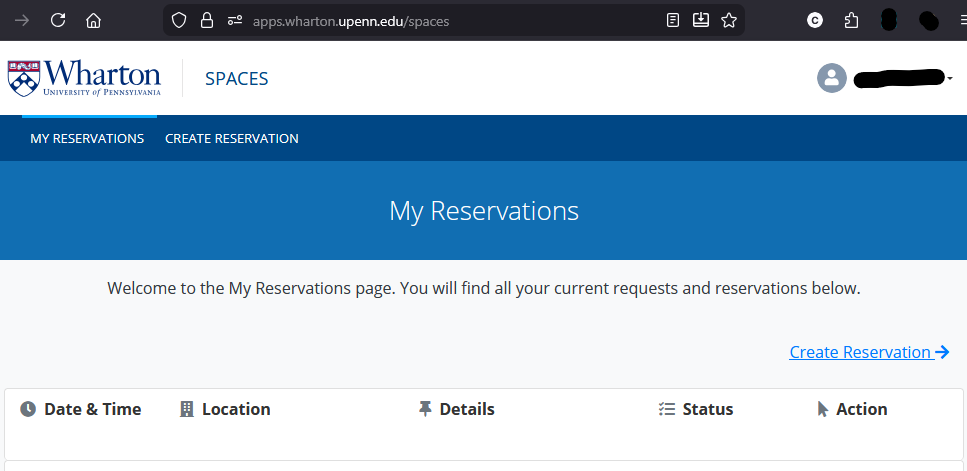
Click the “View Request” button beside the event for which you need tech support.

Below the event description, click the button labeled “Submit Technology Request for this Event.”

This should load the Tech Request form with all the events related to your reservation number under the “Related Events” section.
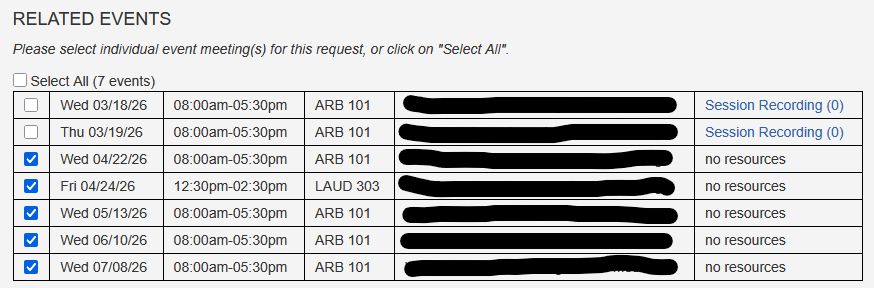
Enter your phone number below the “Primary Contact” section at the top of the form.
Select the department/organization of which you are a part in the “Select Organization” drop down menu.
Select “WH Dept Not Listed” if you do not see your department/organization.
If there is anyone else who may need to request things for this event, add them as the additional contact. You will need their Penn email.
Check "Yes" or "No" depending on if you are submitting on behalf of a student organization.
If yes, select your club in the second “Select Organization” drop down menu that appears.
Enter the 26-digit budget code for the group submitting the request.
If you lack a budget code at submission, enter 26 digits and note this before submitting. We will assist you.
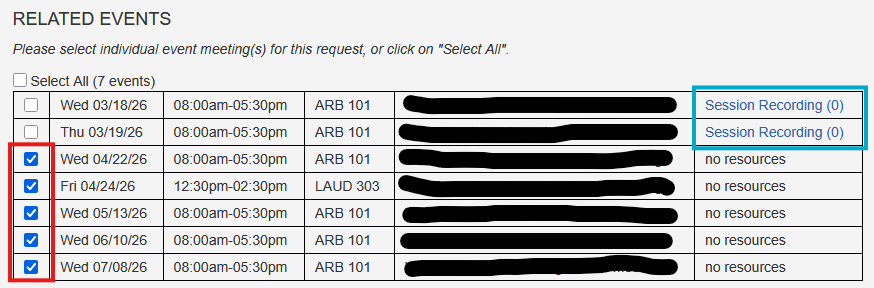
Select the checkbox for the session you want support for (red box). Current resources requested, if any, appear to the right (blue).
Select what technology support will be needed using the different option categories:
“Add Event Support” lets you request a technician for room assistance or training.
Use “Recording Options” to request a full session or audio-only recording. To keep your session private, select “No Recording.”
“Hybrid Options” lets you request support for your existing Zoom Meeting or Webinar, ask us to create a Zoom Event Webinar for you, or schedule a Panopto Livestream. If you’re unsure or want to discuss with the team, select “I’m not sure what I need.”
Use “Microphone Options” to request mics for sessions in rooms with 100 or more seats.
We cannot provide more than one wireless lavaliere microphone in regular classrooms.
Use the “Notes” section to add details helpful for scheduling the technology, such as VIPs attending, the number of speakers or guests, key timeline points, or questions after completing the form.
Click “Submit” to finish the form. You will receive an email and a confirmation screen after successful submission.
Option 2: Search for your event within the form
Enter your phone number below the “Primary Contact” section at the top of the form.
Select the department/organization of which you are a part in the “Select Organization” drop down menu.
Select “WH Dept Not Listed” if you do not see your department/organization.
If there is anyone else who may need to request things for this event add them as the additional contact. You will need their Penn email.
Check “Yes” or “No” if you are submitting on behalf of a student organization.
If yes, select your club in the second “Select Organization” drop down menu that appears.
Enter the 26-digit budget code for the group submitting the request.
If you lack a budget code at submission, enter 26 digits and note this before submitting. We will assist you.
Under the question “Do you have a room assignment confirmed by Facilities?” check “Yes” or “No.”
If you do not have a room reservation, you can submit a room reservation request to Wharton Operations.
If you have a reservation, select “Yes” and specify if the request is for a scheduled course meeting. Choose “Yes” for class sessions and “No” for other room reservations (e.g., meetings, events, club meetings).
If the technology is being requested for a scheduled course meeting you will find it within this view:

If the request is for a non-class session with an assigned room it will be found in this view:

- The event can be searched using the start and end date.
It can also be searched using the Event Name.
Only the main contact on the existing room reservation with Wharton Operations can locate an event. If you see the alert “Meetings for reservation not found, or meetings have already transpired,” reach out to Wharton Operations to confirm the main contact.
If you are not able to be made the main contact for the existing reservation, you may instead select “No” for Step 11 and provide your reservation details: title, date of request, start and end time, and meeting or session name. You may include multiple sessions, as shown below.

Once you locate your event or provide reservation details, check the box(es) next to the events requiring technology.

Select what technology support will be needed using the different option categories:
“Add Event Support” lets you request a technician for room assistance or training.
Use “Recording Options” to request a full session or audio-only recording. Select “No Recording” to keep your session private.
“Hybrid Options” lets you request support for your existing Zoom Meeting or Webinar, ask us to create a Zoom Event Webinar for you, or schedule a Panopto Livestream. If you’re unsure or want to discuss with the team, select “I’m not sure what I need.”
Use “Microphone Options” to request mics for sessions in rooms with 100 or more seats.
We cannot provide more than one wireless lavaliere microphone in regular classrooms with a capacity below 100 people.
Use the “Notes” section to add details helpful for scheduling the technology, such as VIPs attending, the number of speakers or guests, key timeline points, or questions after completing the form.
Click “Submit” to finish the form. You will receive an email and a confirmation screen after successful submission.