Panopto is a leading video management system that is utilized at Wharton for video content creation, editing, and storage purposes. The primary method of recording classroom lectures and events at Wharton is through this application. Although less common, Panopto can also be used for student assignment submissions in Canvas. Use this article for help with the recording and submission process.
Before You Start
You will need the following before you can complete this task:
- Laptop or desktop computer with internet access
- A camera and microphone
- A valid PennKey
Preparing for your assignment
- Update your computer, operating system, and your browser
- Clear your browser history/cache and cookies, then restart your computer the day of or the day before your exam.
- Enable cookies so Panopto can read your Canvas login
- Check your background
- Panopto can blur the background, but does not offer virtual backgrounds
Recording an assignment using Panopto Assignment Submission
Read all of the steps before you begin recording
- Login to your Canvas site and open the assignment or quiz.
- Click "Start Assignment."
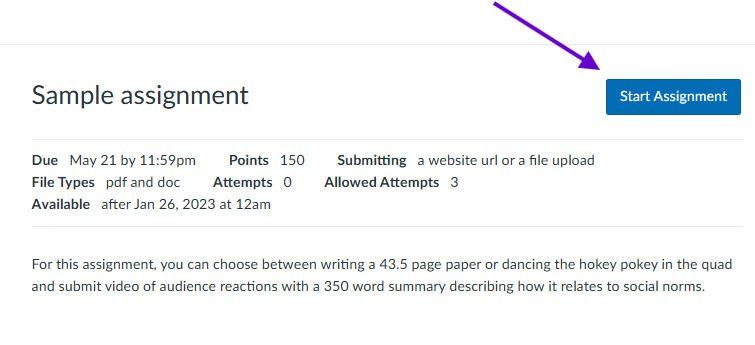
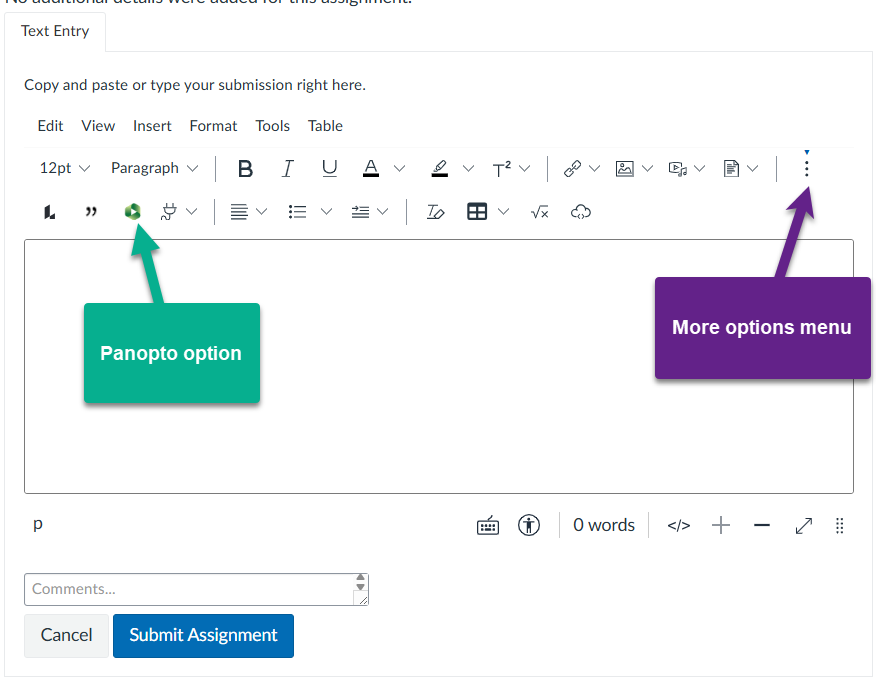
- From the Text Entry field, locate the green triangle Panopto option at the top of the response field. Please note that on smaller screens, you may need to click the three-dot “more options” menu item to find the Panopto option.
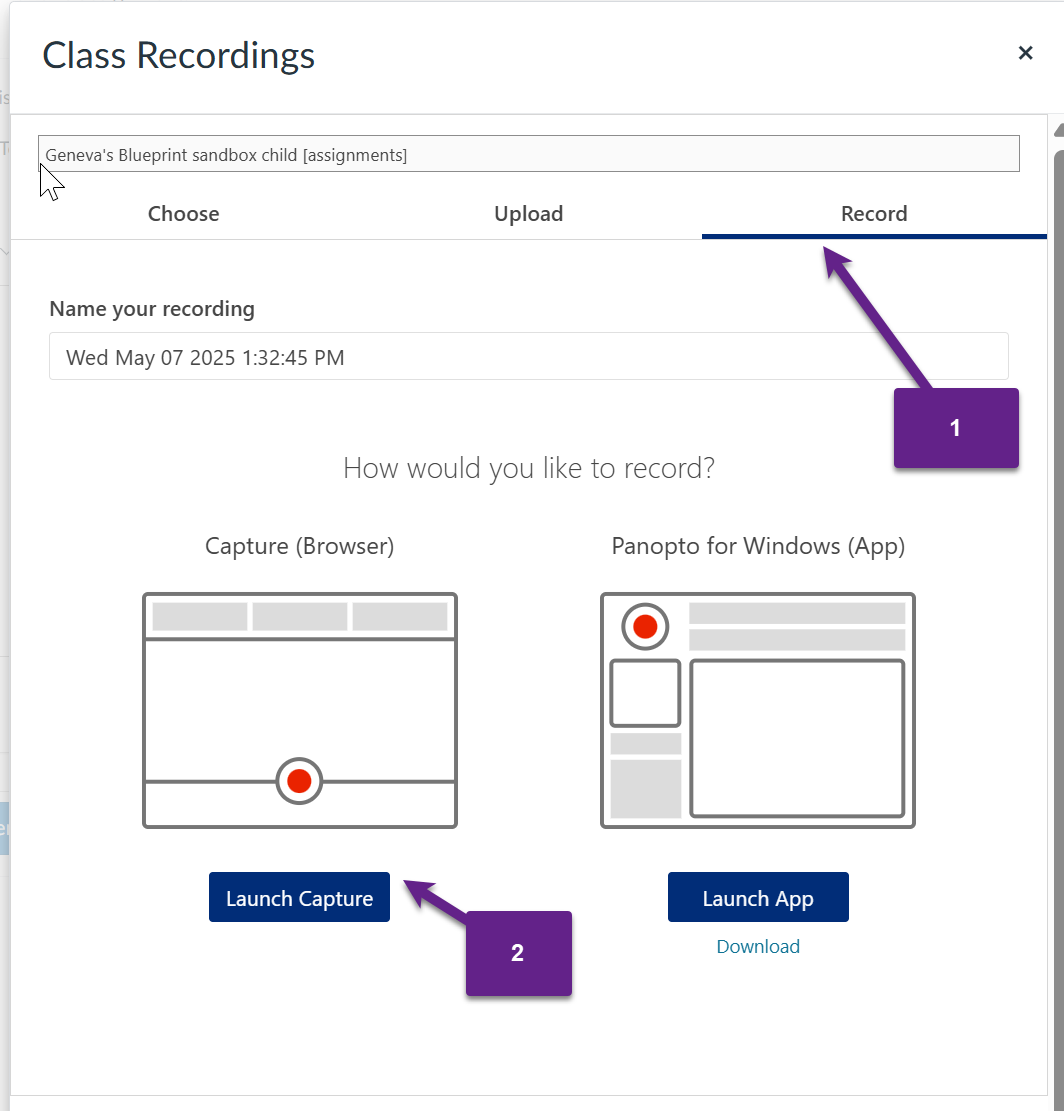
- A pop-up window for “Class Recordings” will open. Select “Record” (1), then “Launch Capture” (2)
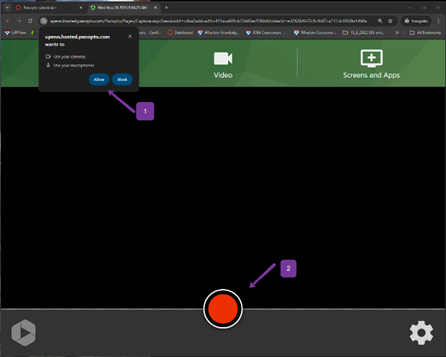
- Allow upenn.hosted.panopto.com to use your camera and microphones (1), check the view of your camera, then click the red button at the bottom to start recording your response (2).
- You will see a timer (3) in the lower right hand corner as you do so. Click the red square button (4) when complete.

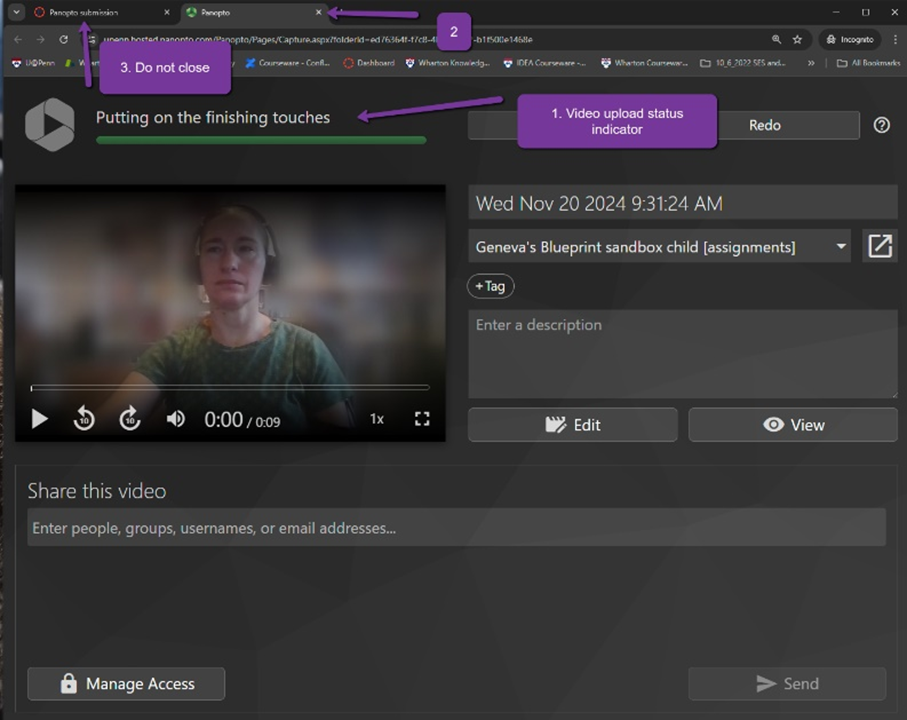
- Wait until video is ready (1), then close the Panopto browser tab (2). Your Canvas site assignment should be open in the other browser tab (3) (do not close the Canvas site browser!)
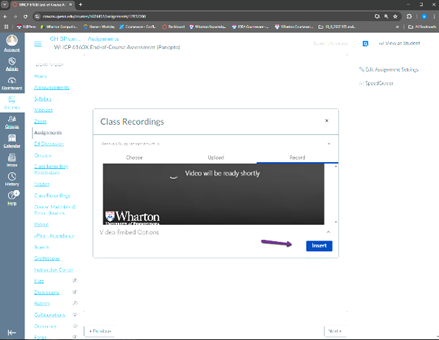
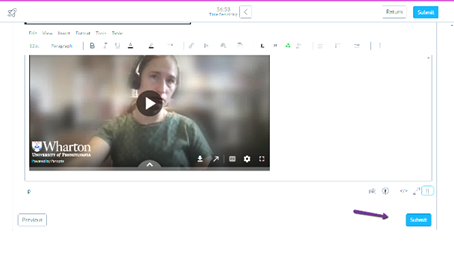
- Click "Insert" to add the video as your response to the question, then click "Submit" for the question.
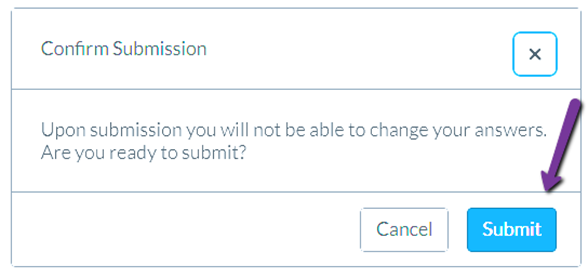
- If the recording is in a quiz or exam, you may need to confirm your quiz submission. This will submit the entire quiz.
Note: The grading interface only shows the first recording you create for each Canvas assignment submission. If you need to record a new take and the assignment allows multiple attempts, we recommend starting a new submission in Canvas.
If the assignment does not allow multiple attempts and you need to record a new take due to technical difficulties, contact your teaching team.
Questions?
Email: courseware@wharton.upenn.edu