Penn offers Zoom as a video conferencing tool for instruction. All Wharton students, faculty, and staff have access to the service.
If you are a student looking for information regarding video conferences, please take a look at the Video Conferences article.
Before You Start
You will need the following before you can complete this task:
- An active PennKey account
- IMPORTANT: A prior successful log in with your PennKey at upenn.zoom.us to establish your PennZoom account. If you are unable to log into upenn.zoom.us with your PennKey, please reach out to Wharton Computing for assistance.
- Faculty and Staff: If you do not have Zoom on your computer, please contact your IT Support Team to have Zoom installed on your computer.
- A wired/Ethernet connection, if possible (recommended for the instructor).
- Robust internet speed: if you are connecting from off campus, go to speedtest.net and look at internet speed. If it doesn't meet the minimums required by Zoom, consider upgrading your Internet speed or contact your IT Support Team.
The recommended way to schedule a meeting depends on whether you are creating a meeting for a consultation with a few individuals (schedule outside of Canvas) or a class session or office hours open to anyone enrolled in your class (schedule in Zoom through Canvas).
Scheduling a Meeting Through Canvas (Recommended for Instruction and Classes)
Creating your meetings through Canvas will take care of scheduling for the class, providing the link to all class participants, directing a recording to the correct Class Recordings folder, and preserving the privacy of your personal meeting account.
Important Notes:
- We recommend that instructors – not TAs – create each class meeting (or sequence of recurring meetings) within Canvas.
- If the Zoom tab is not visible in your Canvas site, you may need to enable the tool in the Course Settings > Navigation menu.
- If changes or cancellations must be made after creating a meeting intended for all enrolled students to join for a class meeting, please change or cancel within your Canvas course, not through your video conferencing app or account.
- TAs, co-instructors, or administrative staff can be added as alternate hosts if they need to be able to start a meeting (see screen shot below).
Zoom
For step-by-step instructions on how to schedule a Zoom meeting through Canvas:
- Launch your classroom in Canvas (go to canvas.upenn.edu).
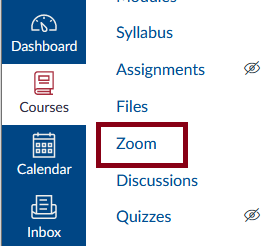
- Select Zoom in the left sidebar.
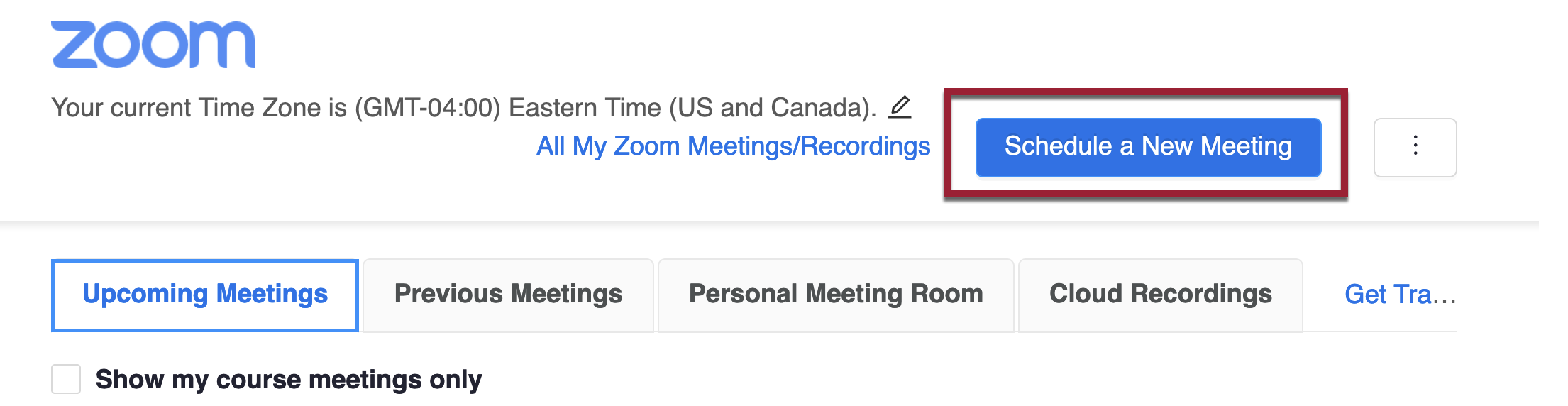
- Click the Schedule a New Meeting button on the upper right side of the screen.
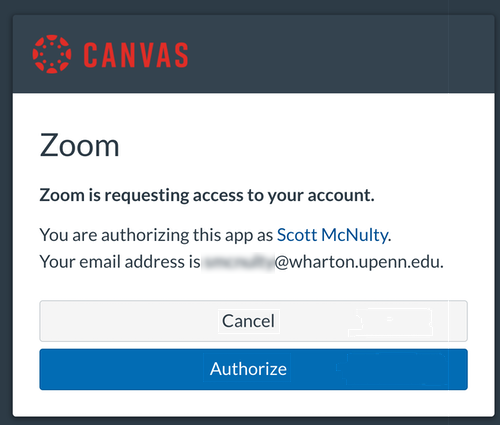
Note: The first time you access Zoom through Canvas it will request access to your account. Click Authorize. You may need to log in, with your PennKey, to authorize Zoom.
- Fill in the details of the class. Include all the details about your class in the Meeting title – if your class has multiple sections in the same Canvas room, all students will be able to access all sessions, so students should be told to join only the section for which they are registered.
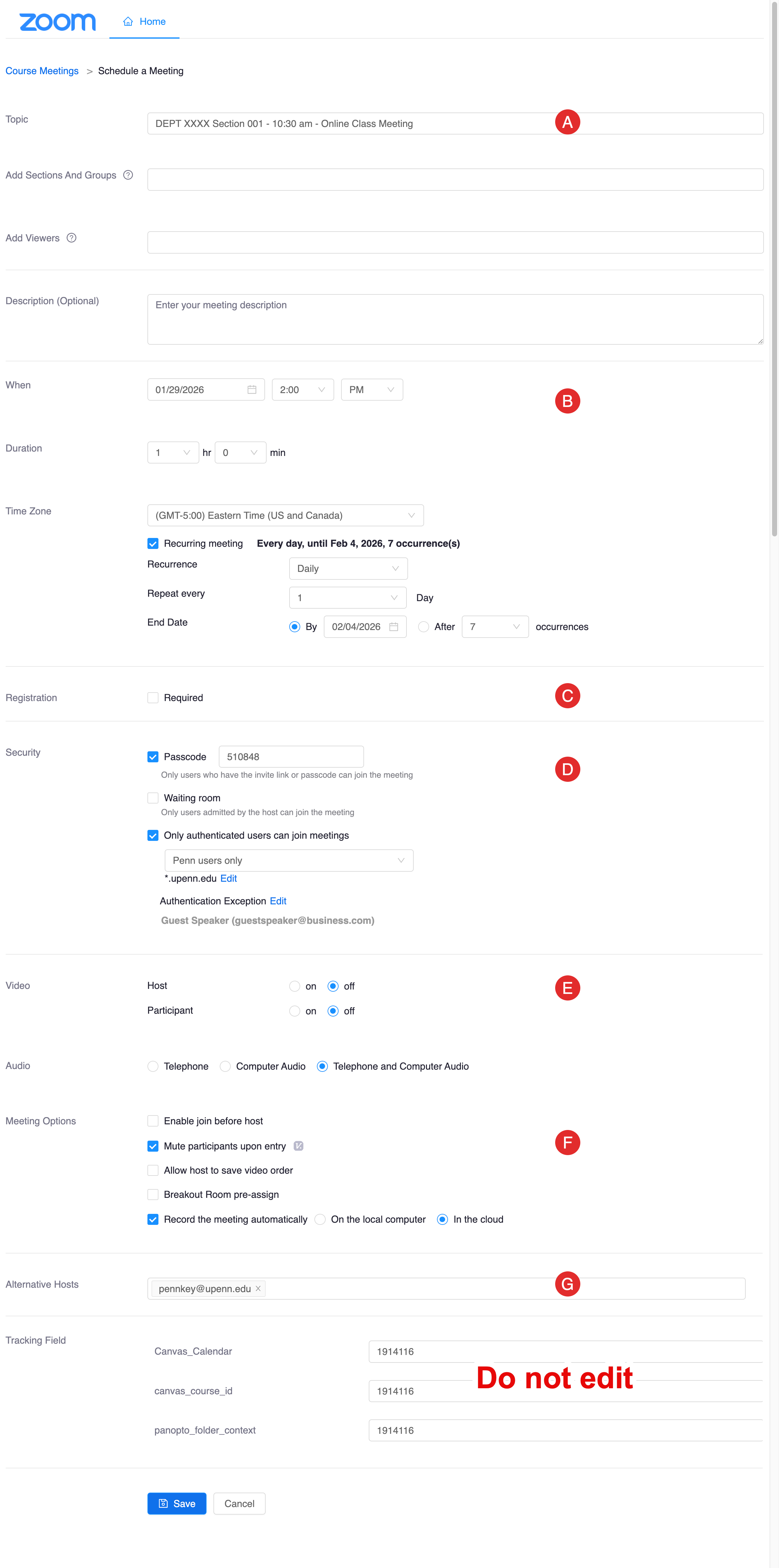
- Topic: Enter the class, section number, time, and meaningful title (e.g. MKTG XXX Section 001 - 10:30 am - Online Class Meeting). Identify your meeting clearly so students can easily pick it out from their other meetings (e.g., Lecture won't identify it as their Marketing Class). This title will be visible to students on the Canvas Syllabus page, the student's To Do list, and the student's Canvas Calendar. You can also enter a Description if you like, but this is optional.
- When: Set the start time, duration, and Time Zone. Be aware of your time zone and the time zone for your course.
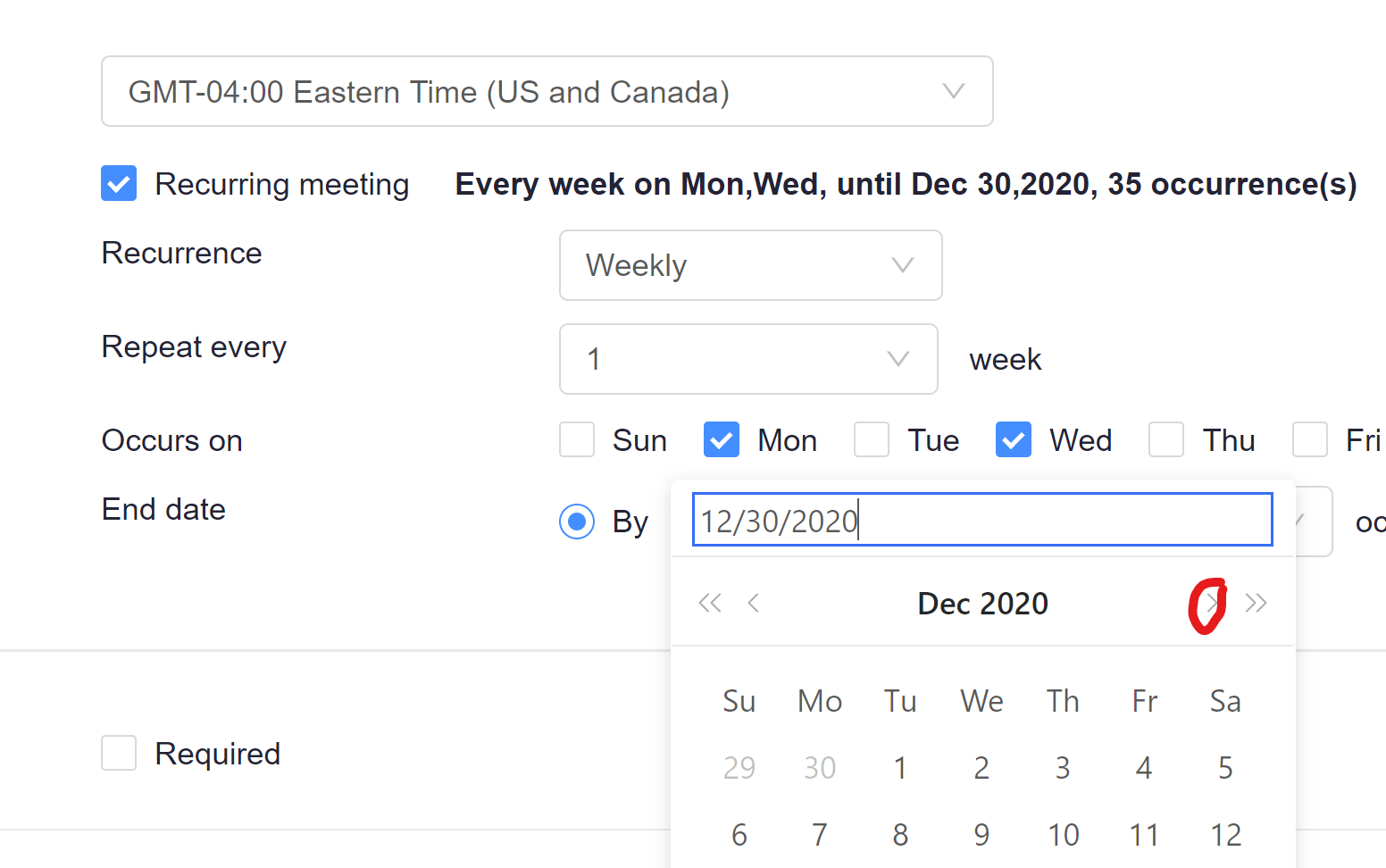
Recurring meetings can be checked or unchecked. Be sure to fill in the proper class start and end dates. For meetings with no fixed time (for example, office hours), toggle the Recurrence to No Fixed Time:
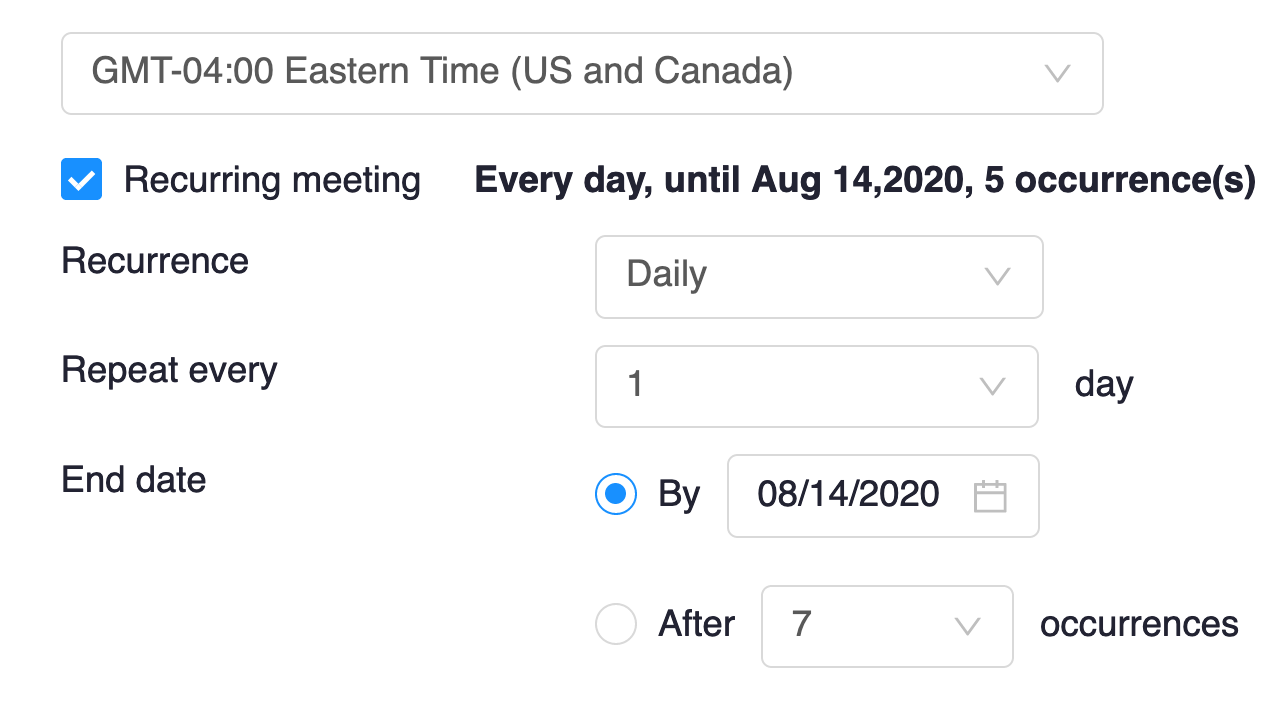
Use the single arrow to page through the months and the double arrow to page through the years.
 Meeting with No Fixed Time: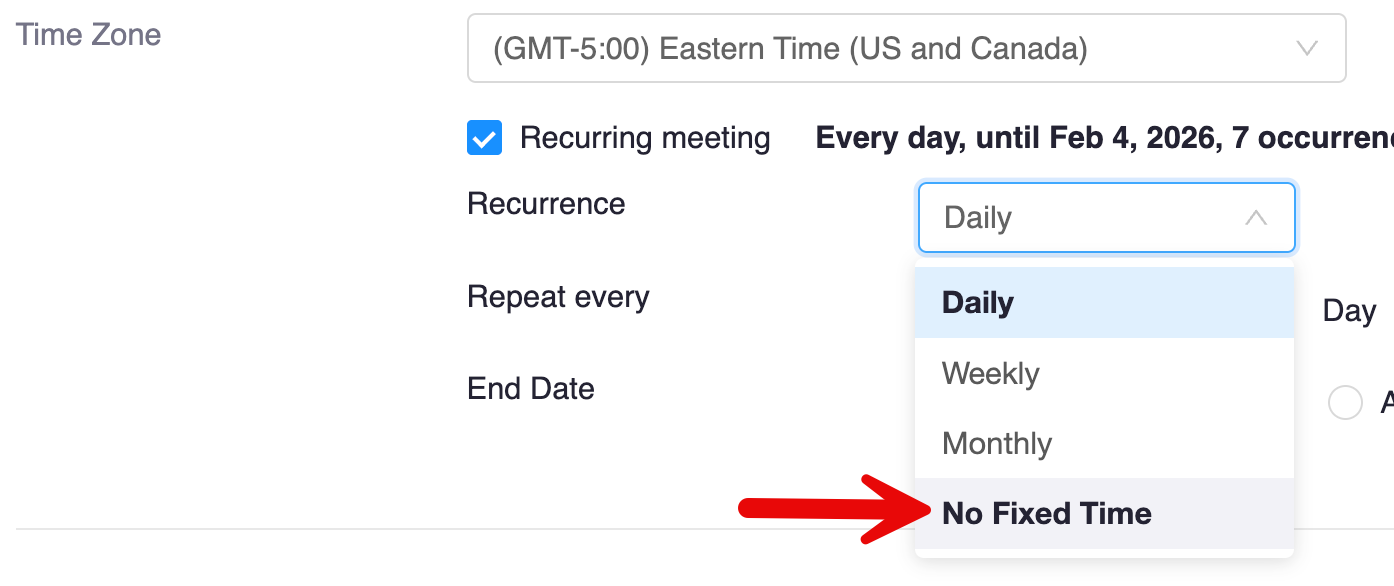
- Registration: Since all of your students will have Penn Zoom accounts, we recommend you leave Registration unchecked. If you check it, your Zoom meeting will require people to register ahead of time. More details about this can be found here.
- Security:
- Passcode - We recommend that you require a Passcode for your meetings. Most attendees won't need to manually enter the code as it will be part of the URL included in the meeting invite.
- Waiting Room - The Zoom Waiting Room gives you the ability to preview the attendees before they enter the meeting. This will make your meeting more secure, but it does require someone to admit each student (either one by one or in bulk).
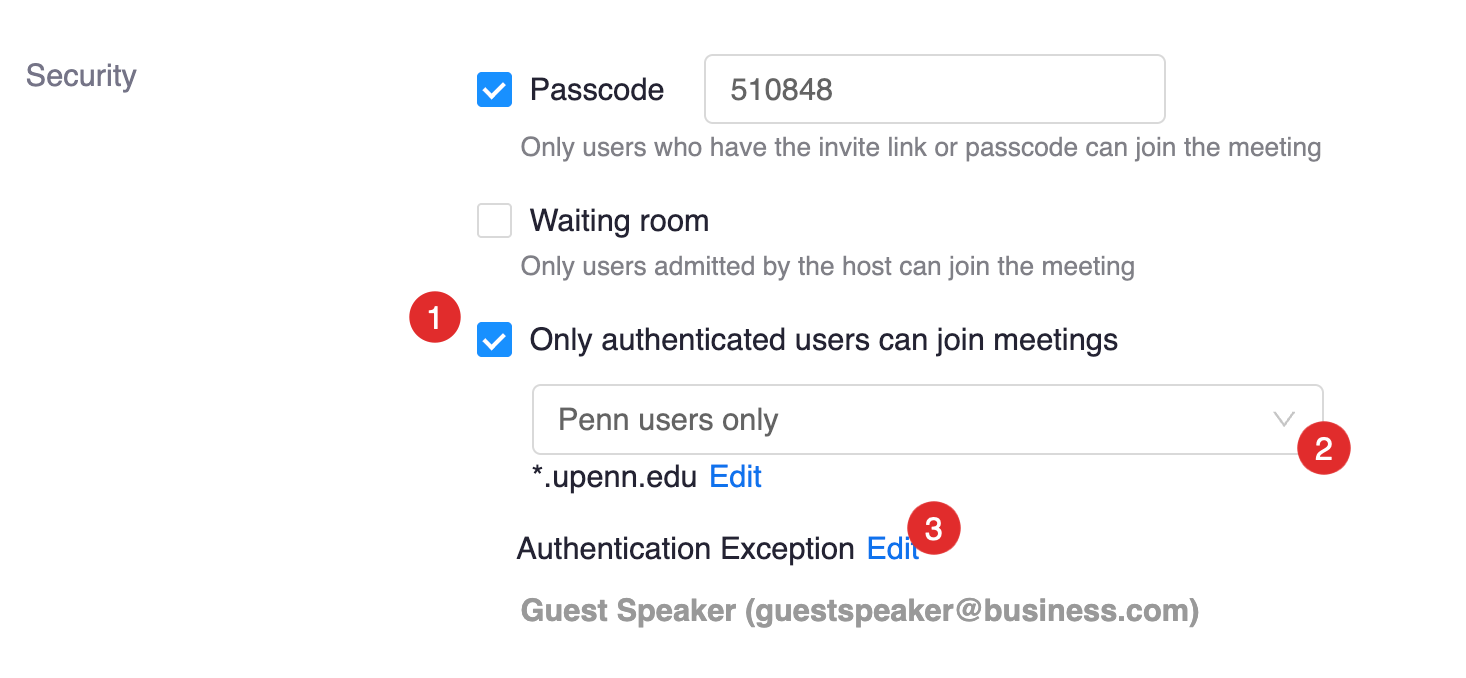
- Require authentication to join - We recommend requiring authentication to join and limiting participants to Penn Zoom users. Authentication exceptions (for guest speakers, for instance) can be entered as needed.
- Video: This setting determines if the Host's and participants' cameras are on or off when they enter the meeting. Off is the default, but if you have changed your Penn Zoom account default, you will see the change in Canvas.
- Meeting Options: You have a few options that you can set up for your meeting. Here's what each does and our recommendations around them:
- Enable join before host - Consider whether you want to have this option available.
- Unchecked: Many people join meetings ahead of time to test settings, and leaving this unchecked ensures the meeting won't start until you want it to.
- Checked: Your Zoom meeting (and the recording, if the meeting is set to auto-record) will start the moment anyone joins the meeting. This can be useful if you may be running late or if you would like the flexibility of asking someone to start the class.
- Mute participants upon entry: When checked, the video and audio of participants will be muted automatically when they enter. We recommend you leave this unchecked, though if you prefer to have more control over the initial moments of your class, you should check it.
- Use Personal Meeting ID: This option SHOULD NOT be checked. If it is checked, Canvas will associate all the meetings you have with your Personal ID with this Canvas site. You don't want that.
- Record the meeting automatically: Check this box to ensure your Zoom session is recorded. The Zoom meeting record will start the moment one person joins the meeting; each participant is notified that the meeting is being recorded upon entry. In the cloud is the default destination for your recording, and we recommend you keep this set as is.
- Enable join before host - Consider whether you want to have this option available.
- Alternative Hosts: You can manually add additional alternative hosts here. Note that alternate hosts need to be added in the format: pennkey@upenn.edu (NOT pennkey@school.upenn.edu).
- Click Save, and your Zoom meeting is scheduled. The details are displayed for you:
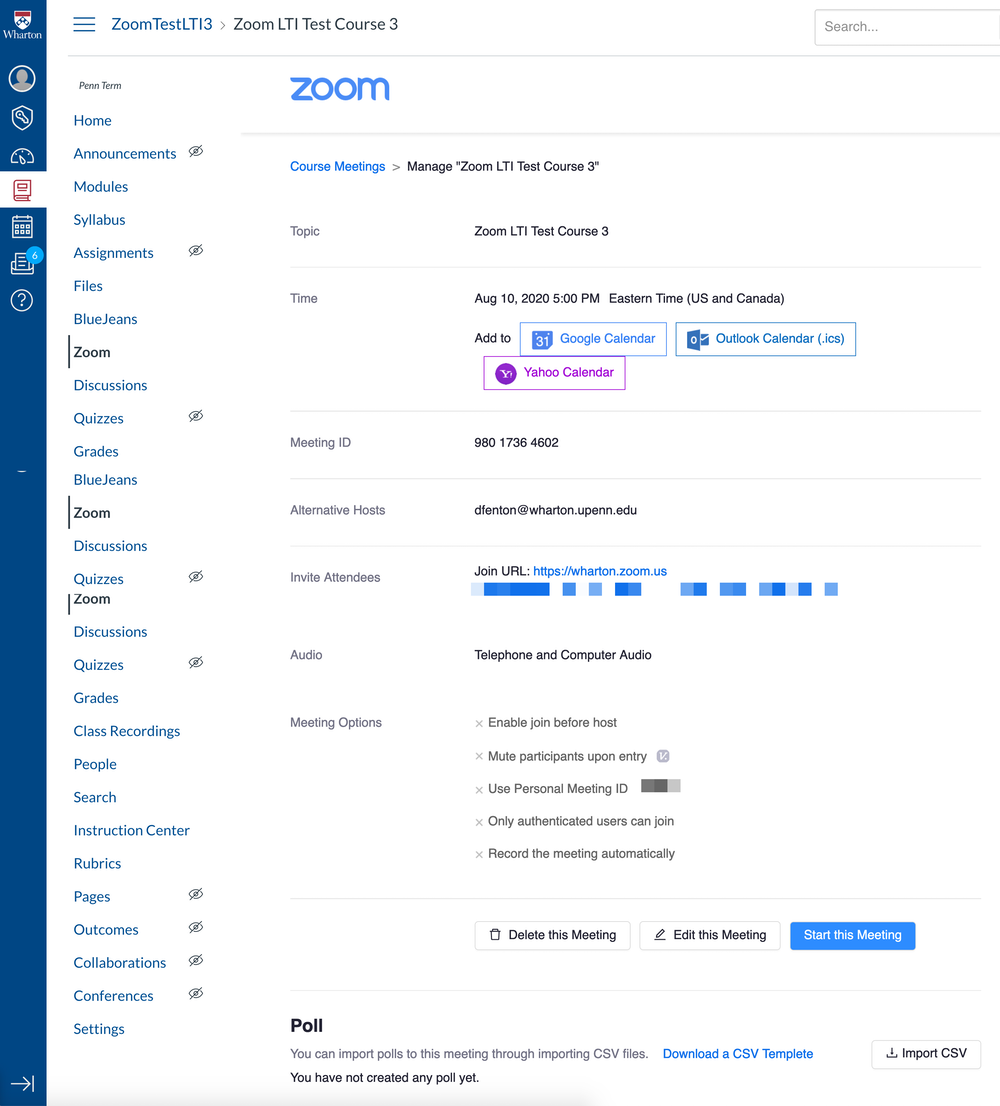
 Meeting with No Fixed Time:
The scheduled Zoom meetings will be listed on the Zoom tab for you and your students:
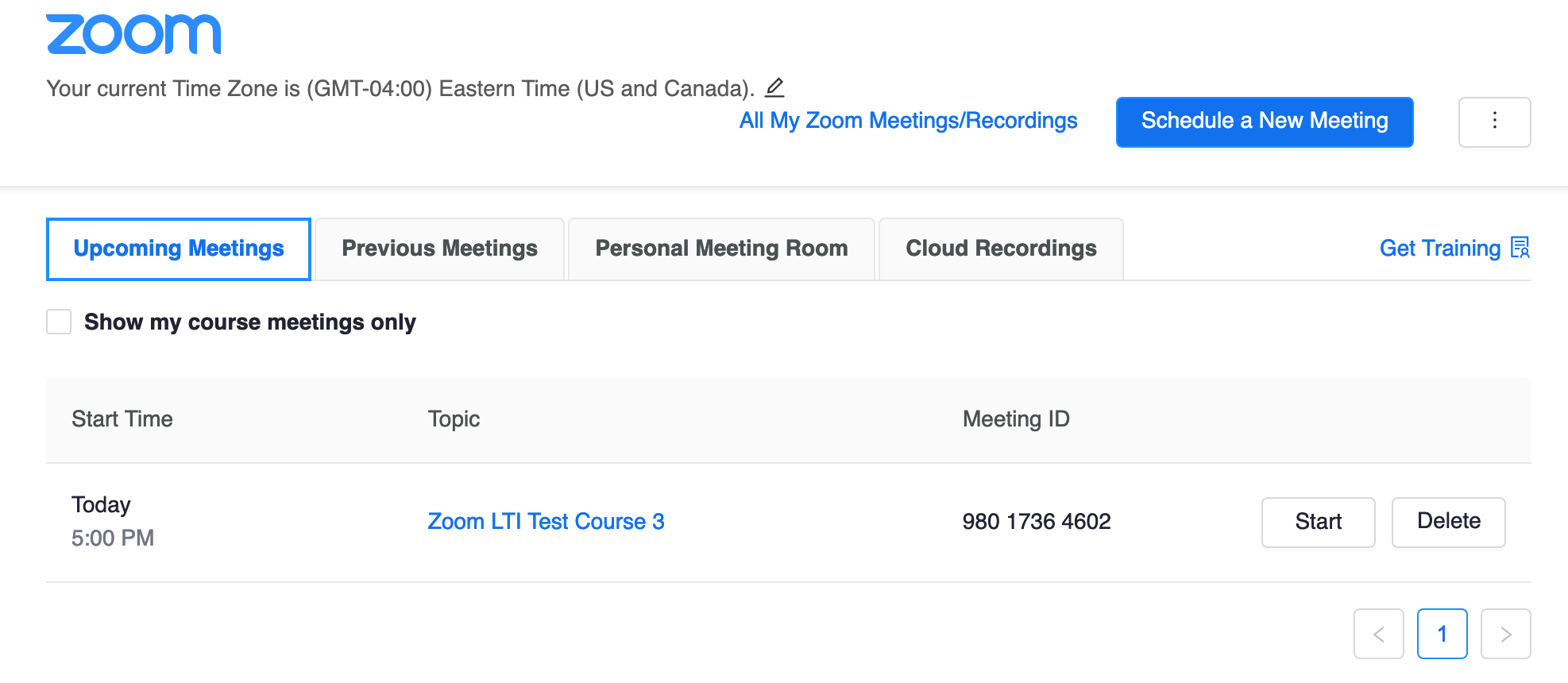
The Zoom meeting will be visible to students on the Canvas Syllabus page, the student's To Do list, and the student's Canvas Calendar.


Note: Now that your meeting is scheduled, you may want to add pre-assigned breakout room assignments to your meetings. See our article Video Conference Breakout Rooms to learn more about pre-assigning breakout rooms.
Recordings
Any Zoom meetings scheduled through Canvas (see the above instructions) and set to record will have their recording automatically posted to Class Recordings in the Canvas site shortly after the meeting ends. The meeting title will be used as the recording title. Depending on how long the recording is, there may be a delay as the video recording is processed.
Recurring meetings will all have the same title but are differentiated by the dates included in the recording description.
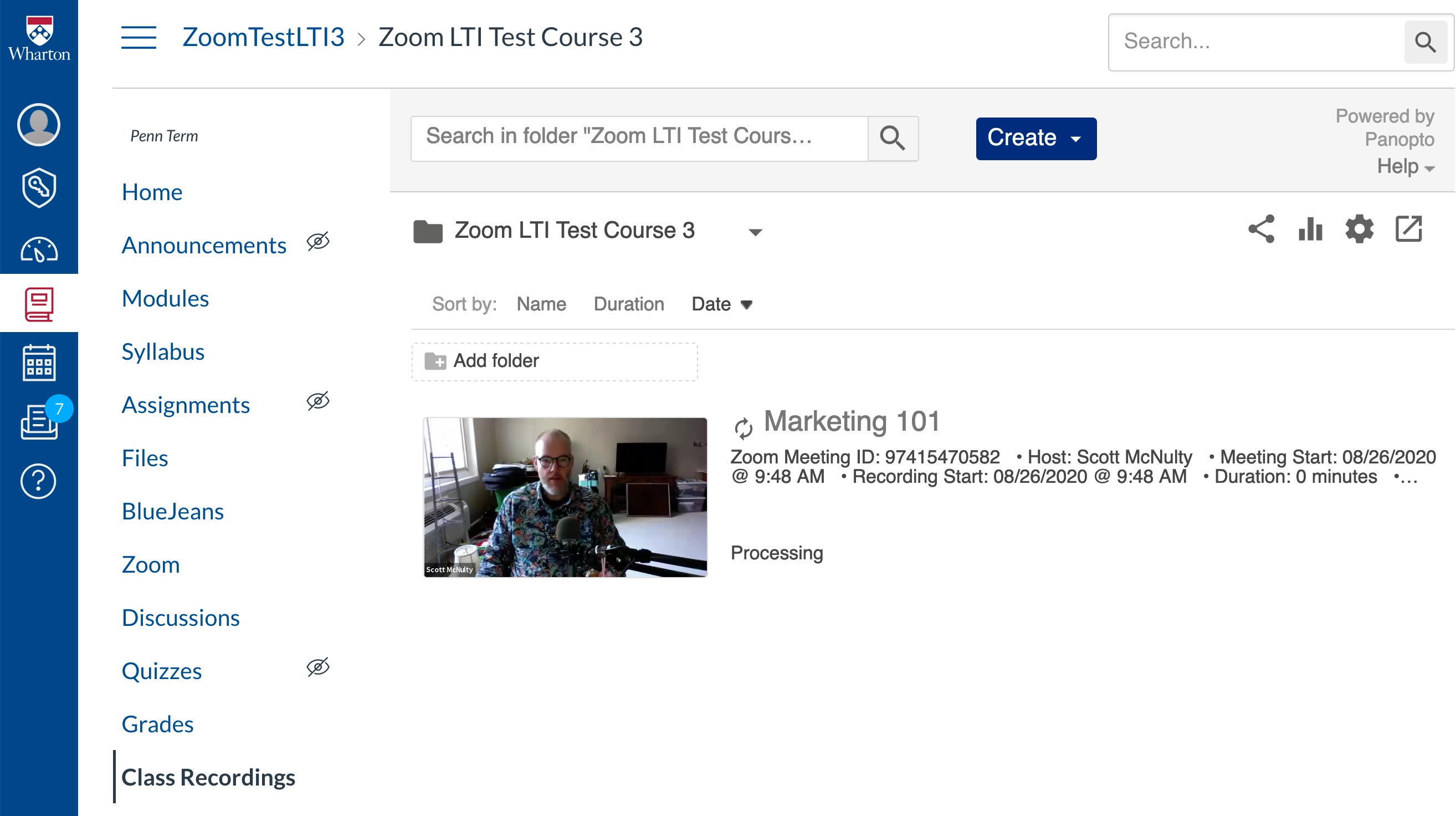
You can edit videos in Panopto. More details about how to do this can be found in our Editing Videos in Panopto article.
Class Recording Permissions
By default, Zoom recordings will be provisioned with the permissions configured in the Class Recording Permissions app.
Scheduling a Meeting with a Guest Speaker
For bringing a guest speaker into your classroom using Zoom, there are a few considerations:
We recommend choosing one of the following two options to schedule your Zoom call for a guest speaker appearance:
- Scheduling guest speaker meetings via the Zoom tab in Canvas when students have the option to attend virtually rather than in person.
- Scheduling guest speaker meetings via https://upenn.zoom.us when the intention is for students to attend only physically in class. Once scheduled, a private meeting invitation can be shared with each guest speaker.
(The best practice is not to use Personal Meeting Room for either option (1) or (2) noted above.)
If your guest speaker does not have a Penn Zoom account, you will need to configure an authentication exception to allow them to join the meeting.

- Select the option Only authenticated users can join meetings
- Toggle to Penn users only
- Select Edit and enter the guest speakers name and email address they will be using to login to the meeting.
- If students are expected to be in the physical classroom, consider whether you want the guest speaker meeting to be listed in Canvas for students to join:
- Unlisted for students: please use the general Zoom instructions for setting up a meeting without using Canvas.
- Listed on Canvas and OK for students to join the Zoom meeting directly: instructions on this page will work.
- If you are not comfortable getting your Zoom meeting to appear via the projector, be sure to contact CTS Classroom Support 3 or more business days in advance to arrange for in-classroom assistance.
Reminder: If you plan to have a guest speaker join your meeting, be sure to confirm the comfort level of your speaker being recorded, as some guests have requested not to be recorded as a condition of their appearance. To arrange for classroom recordings showing a projected guest speaker not to be recorded, please contact CTS Classroom Support 3 or more business days in advance.
Questions?
For additional help and support:
- See our Zoom FAQ
- Contact your academic support representative
- Check out the Knowledge Bases for Zoom