Canned text in Halo allows you to quickly include saved text in a reply to a ticket (ZenDesk users: these are like macros in ZenDesk).
Examples of canned text include:
- A solution to a common problem.
- Frequently used instructions.
This article covers how to use canned text in Halo and how to created canned text of your own.
Before You Start
You will need the following before you can complete this task:
- An active Halo agent account
- Be logged into the Halo agent application
Inserting Canned Text
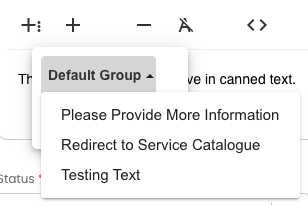
Canned text icons, the two plus signs highlighed below, are available on the Halo text editor when you're creating a private note or crafting an email reply.

 Clicking the first icon allows you to select some canned text you'd like to insert in your note. The canned text options are grouped to make it easier for you to find the right text. Click on the group name you're interested in and the canned text options in that group are listed.
Click on the text you want, in this case Penn Marketplace Re-Registration, and the text appears in the text editor.
You can edit the text as you normally would, or just send the message should the canned text cover all the information you need to include.

Canned text can include some text that beginning with a dollar sign ($). These variables which will be automatically populated with the right information related to the ticket that you are sending the canned text from (for example, $cffirstname will be replaced with the requesters first name).
Adding an Image to Canned Text
Once you've inserted your canned text of choice you can, of course, edit the text. You can also insert images, which can be handy when you need to include information from another system:
- Once you've selected your Canned Text in the text editor click on the Insert Image icon.
- Click on Drop image to open a file brower.
- Find the image you'd like to include and click Upload.
- The image is inserted into the text editor. You can now can edit the message. Click Send when you're ready to send your email.
Creating Canned Text
Any text you put into the Halo text editor can become canned text by:
- Enter some text into the Halo text editor (either for a private note or an email).
- Select the text that you'd like to include in your canned text. You can select all of the text you've entered, or just part of it, but you must select something or else the canned text will be blank.
- Click the + button on the editor's toolbar.
- Fill out the New Canned Text form.
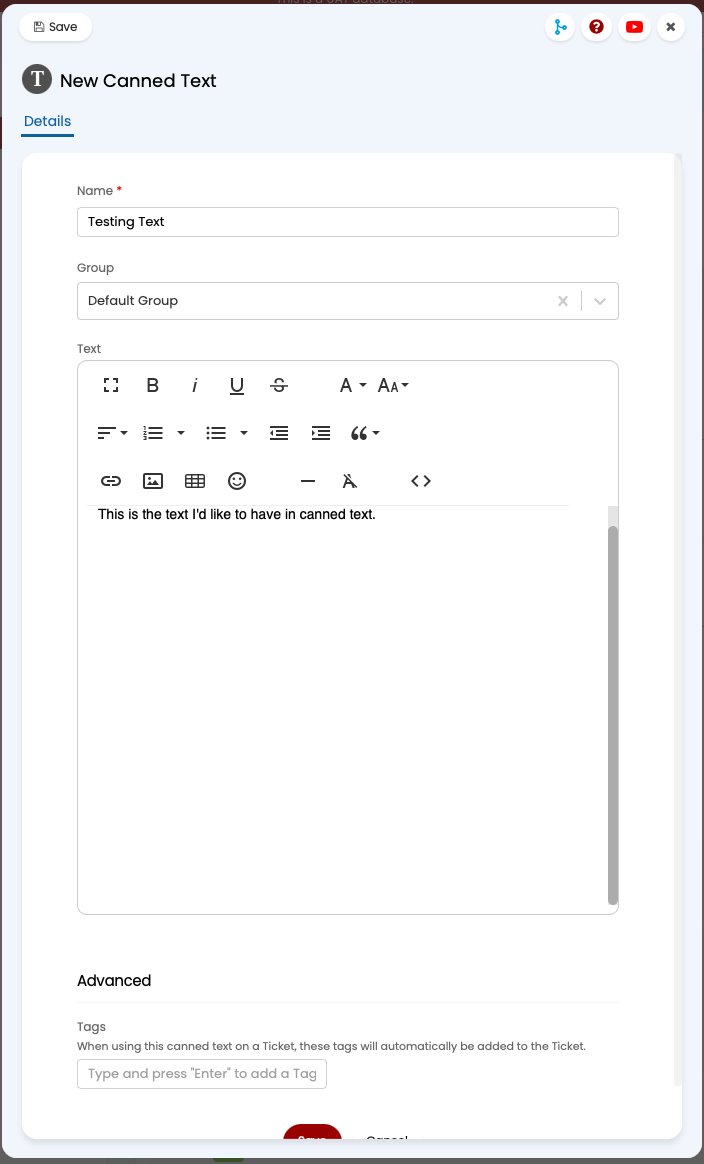
- Name: A name for the canned text. This will appear in the dropdown so make the name something meaningful.
- Group: Select a group from the dropdown.
- Text: The text you selected will already be in the text box. Edit it as you see fit.
- Advanced: Add a tag under Advanced if you'd like to automatically tag any ticket that uses this particular canned text.
- Click Save.
- Your new canned text will now appear in the group you selected.