Some instructors may want to upload the recordings of their Zoom meetings separately from the automatic posting of scheduled class meetings in Canvas. You'll need to first download the recording from the Zoom interface and then upload that file to Class Recordings using Panopto.
The instructions in the Uploading the Recording to Panopto section can be used to upload any video, not just recorded Zoom meetings, to the Class Recordings page ("tab") of a Canvas site. In case your Class Recording Permissions app is configured for "no access" or "student request access," follow the instructions for Managing Your Recordings.
Accessing the Recording in Zoom
Zoom meetings scheduled via Canvas and recorded are automatically uploaded to the Class Recordings tab (Panopto) in Canvas. These recordings are not stored on Zoom and are only accessible via the Class Recordings tab.
You may expect that a Zoom recording would consist of one file, however, a Zoom recording will often have many files for you to pick from:
- There are several Recording layout files (Shared screen with speaker view is probably the best choice for uploading to Canvas).
- Audio only.
- Audio transcript.
The instructions below will show you have to download all the available recordings for a meeting at once, or pick and choose. Click Read More to see the instructions:


 ) and the file will be downloaded to your computer. Make a note of where you saved the file so you can easily find it to upload to Canvas.
Uploading the Recording to Panopto
Zoom class meetings scheduled via Canvas and recorded are automatically uploaded to the Class Recordings tab (Panopto) in Canvas.
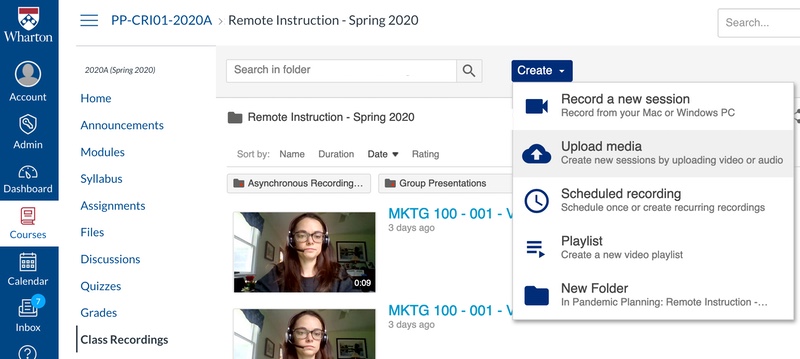
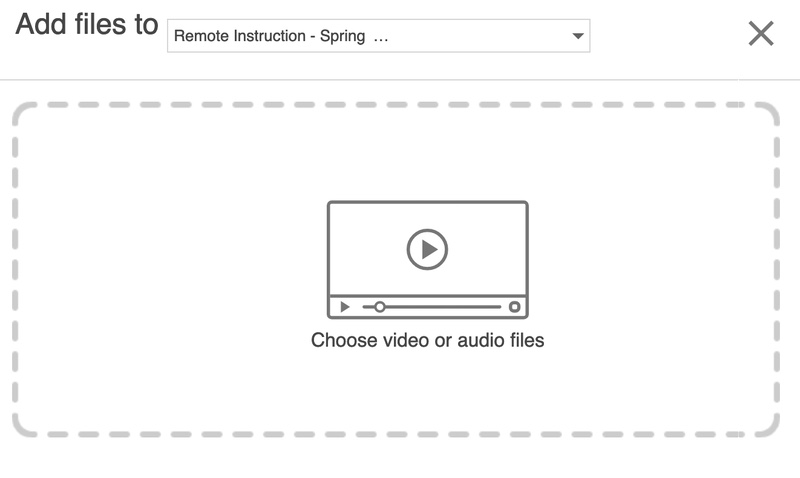
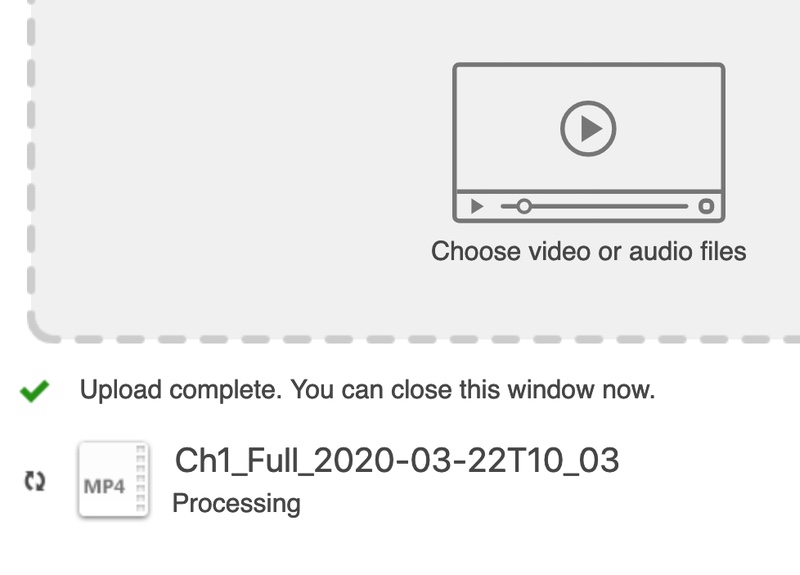
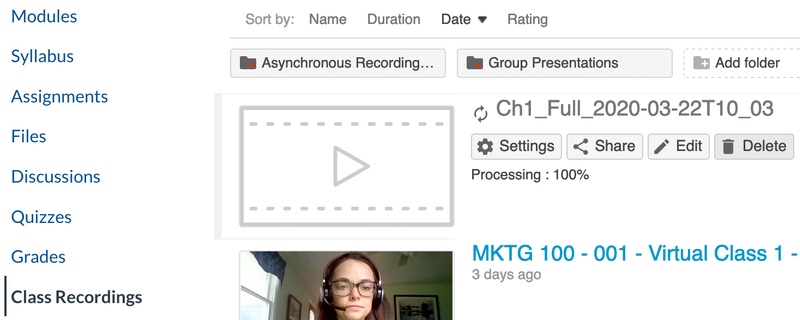
Now that you've downloaded your recorded meeting, you can upload it to Class Recordings using Panopto by following these steps:
Questions?
- For more assistance, contact your Academic Support Representative
- Request help with using the Panopto Recorder app or student recording permissions by emailing class-tech@wharton.upenn.edu