This guide walks you through how to access a Zoom report through the Zoom tab in Canvas for attendance-taking purposes. The attendance reporting is especially important when a course shifts to remote teaching with short notice.
This guide also details how to update aPlus+ to match the Zoom reporting data (if the course uses the aPlus+ attendance tool).
To view a Zoom report in Canvas:
- Log in to Canvas using your PennKey credentials and go to the course where you'd like to acquire a Zoom report.
- In the left-hand navigation, click Zoom (note that the order of tabs could be displayed differently on your sidebar than in the screenshot below):

-
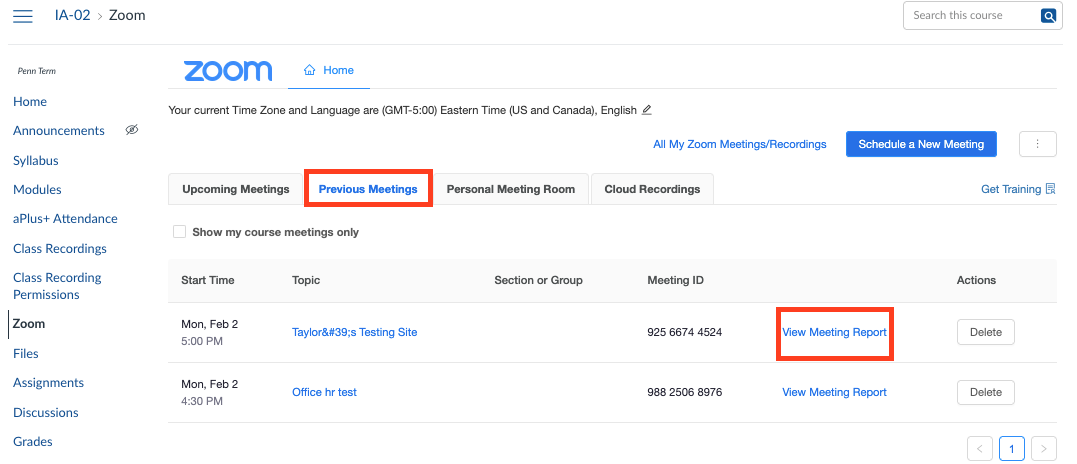
Go to the "Previous Meetings" tab in Zoom. This list will only show meetings that have occurred in the past:

- Locate the meeting and select "View Meeting Report." In this example, there are only two meetings, but you may have to scroll to locate the session for which you need an attendance report if Zoom meetings happen regularly:
- View or export the attendance data as a CSV file.
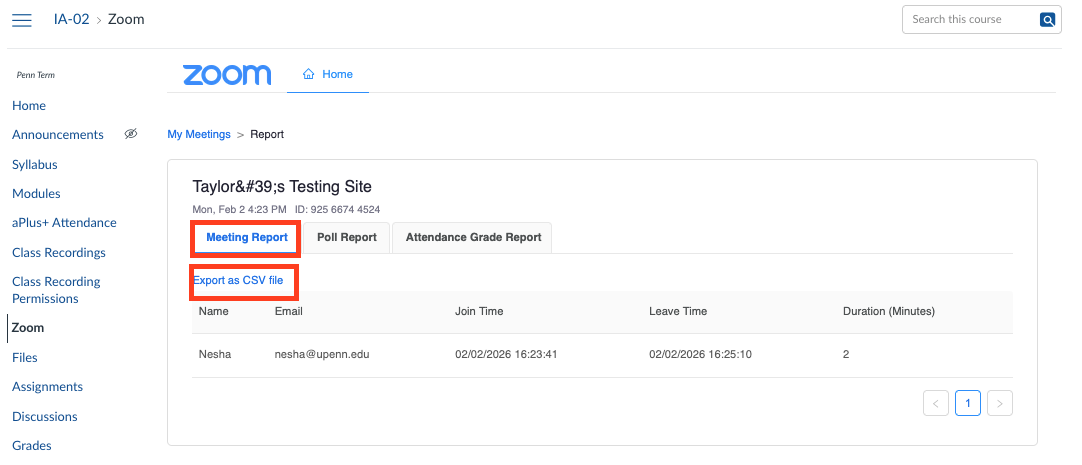


The downloadable report contains user name, email, join time, leave time, and duration.
Updating Attendance Data in aPlus+ Attendance
When courses are held remotely via Zoom, it's still possible to take attendance virtually using aPlus+. To do so:
- Navigate to the course you'd like to take attendance in.
- Project the code as usual.
- Share your screen in the Zoom session so that students can either scan the QR or enter the alphanumeric code to check in for that session.
Note: Although there is an "Import" option in aPlus+, this cannot be used for importing data from Zoom into the application. Do not use this option.
If you did not initiate an aPlus+ check in window for students to check in during the Zoom session, you can still manually update the data in aPlus+ using the Zoom report information detailed above.
To manually update statuses in aPlus+, please follow the instructions linked here. If you decide that you do not want to take attendance using aPlus+ for a session, leaving the session statuses "blank" for that day will not result in students being penalized or losing points from their attendance grade. The system will treat the session as null value.
Recommendations and Limitations
To ensure proper reporting in Canvas, please note the following recommendations and limitations:
- Disable "Join Before Host" when scheduling Zoom meetings intended for Canvas attendance tracking.
- The reporting feature in the Zoom LTI integration for Canvas does not support meetings where "Join Before Host" is enabled. When this option is enabled, it may prevent proper report generation and may cause only the latest attendance record to appear in Canvas.
- For meetings where "Join Before Host" was enabled and attendance data is missing or overwritten in Canvas, you can retrieve the full participant list directly from the Zoom Web Portal (upenn.zoom.us) by navigating to:
Account Management → Reports → Meetings and Webinars History.
If you require historical attendance data for meetings where "Join Before Host" was enabled, you will need to manually retrieve this information from the Zoom Web Portal, as Canvas will not retain multiple attendance records for such meetings.