This article will help you understand what a Canvas Blueprint site is and how to manage your Blueprint parent site and associated sites. This is a high-level overview and does not include all setup and configuration information. If you are using Blueprint for the first time, or would like a refresher, please reach out to the Courseware Team at courseware@wharton.upenn.edu to schedule a consultation.
Sending Announcements through the Blueprint Template
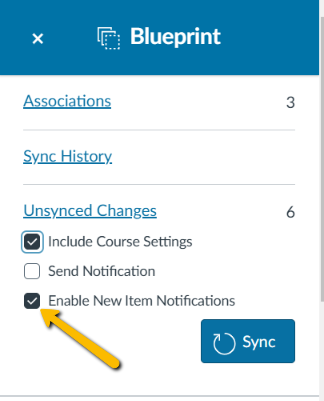
Announcements can be sent through either individual child sites or the Blueprint parent site. To send announcements through the parent site:
- Set up the announcement as you would in any Canvas site.
- Select the "Enable New Item Notifications" menu item, then Sync the announcement to the child sites.
Appointment Groups
To create student sign-ups (for office hours or the Faculty/Student lunch program) available to students across multiple sections, you'll need to select all desired sections in the Calendars field of an Appointment Group //[link to All About Appointments article]
Calendar Events
To create calendar events (for office hours) available to students across multiple sections, create them in the template site, then sync them to the associated sites. Canvas does not allow users to select multiple calendars, but will populate the calendar events in the associated sites in the next sync. If calendar events are created both in the template and associated sites for the same time slot, the associated site calendar will show both calendar events.
LTIs
If your site uses any of the LTIs (Canvas-integrated third-party tools) that are supported by the Wharton Courseware team (e.g., FeedbackFruits or Harmonize), please note they will only sync to child sites once and should be completely configured and proofread before they are synced. If you will be using an integrated tool with your Blueprint site, please contact courseware@wharton.upenn.edu to request information specific to how the tool interacts with Blueprint Canvas sites.
Zoom and Zoom Recordings
To create a single zoom meeting for all sections of a course associated to a Blueprint Canvas site, you can do so by creating it in the template site and then syncing it to the child sites. When a Canvas Zoom LTI meeting is synced to the associated Canvas sites, a Canvas calendar event is created. Students will find the Zoom meeting information on their Canvas site calendar, the syllabus page, and their Canvas To Do list. They will not see the meeting in the associated Canvas site Zoom menu item, nor will they see it in MyWharton.
Any Zoom meetings created using the Canvas Zoom integration with the default recommended meeting settings and are then recorded will automatically be routed to the Class Recordings folder of the Canvas site associated with the Canvas Zoom integration. For example, if the meeting is created in the Blueprint template, then synced to the associated Canvas sites, the recording will be accessible in the Blueprint template Class Recordings folder.
The Class Recordings folder does not sync to the associated sites. [link to curriculum videos below]. If you would like to share the recording with the associated sites, you can either copy the video in Panopto or you can adjust the visibility settings of the recording or the Panopto folder, then embed the recording in a Canvas announcement, assignment, or page and sync it out.
If you do not currently use any of the LTIs but would like to hear how they can enhance your assignments and/or your Canvas site, contact the Courseware team.
Respondus LockDown Browser
To request Respondus LockDown Browser be added to your Canvas site(s) for an in-class exam or quiz, please email courseware@wharton.upenn.edu
After Respondus LockDown Browser has been added to your Canvas sites, you can enable it for any unlocked quiz in each of the associated section sites using the instructions in the Respondus Lockdown Browser article. Please note that once you have done so, Respondus LockDown Browser will change the content of the quiz by adding “Requires Respondus LockDown Browser” to the quiz title. If changes are made to the quiz after this point, you will see a sync exception for content for each section in which the quiz title has been changed.
We highly recommend waiting until you have finalized and synced all edits to the quiz content before enabling Respondus LockDown Browser in the associated section sites.
Curriculum Video Content
If you have videos that you share via Canvas as part of your curriculum (i.e. not the Class Lecture recordings), you should create a folder in the Class Recordings area of the Canvas template site, adjust the visibility to “Available to anyone with the link,” then upload the videos you would like to use into the folder you just created. Once the video is uploaded, you can embed the video in a Canvas Rich Content Editor (such as an assignment or a page), publish the item, then sync it to the child sites.
Trouble-shooting Common Issues
What to do when students switch sections after submitting assignments?
If any of your students change sections after submitting assignments, please contact courseware@wharton.upenn.edu. We will work with you to schedule a brief meeting via Zoom during which we will very briefly add the student back to their original Canvas site. While we are still in the meeting, you will be able to access the work the student submitted prior to changing sections so you can transfer the work and/or the grades and feedback to the new section. We will then remove the student from their previous section's Canvas site. We complete this process while in a meeting with the teaching team because it is important that we minimize the time that the student is re-enrolled in the old Canvas site.
What to do if content doesn’t sync like expected
If you notice that content is not syncing like expected after you follow the steps in the section on syncing above, please contact the courseware team to let us know, and include as much detail as possible about what happened and when. It is very helpful if you also include a link to the item and screenshots of any errors.
Replacing Files
To replace a file through the template site:
1. lock the file, then sync.
2. delete the file, then sync.
3. add the new file, then sync
Regrading Quizzes
If you are using New Quizzes and discover you need to regrade a question, this will need to be done separately in each associated section site.
Cloning groups in Associated Sites
If you clone a group set that is associated with a group assignment and want to use the cloned group set for the assignment, you will need to manually update each assignment in the associated site(s) to associate the correct group set. Important: this should be done before any student makes a submission to the assignment.
If you have questions regarding whether it would be better to update the current group set or clone it, please contact the courseware team.
Questions?
Contact the Courseware team at courseware@wharton.upenn.edu.